Resume Player
for iOS / iPad
Copyright 2023- studio pec. All Rights Reserved.
- Video and music file player.
- With resume playback, you can hear from the continuation of the previous time.
- Playlists make it easy to organize files.
- The playback speed can be set from 1/2 times slow playback to a maximum of 2 times speed.
Resume Player is the perfect app for watching long content such as radio programs, movies, and TV shows in small chunks.
Of course, it can also be used as a regular music player.
Usage
Contents
- Playlist View
- Preview View
- Switching between playlists and previews
- Play Off Timer
- Version Upgrade History
Playlist View
Add Button
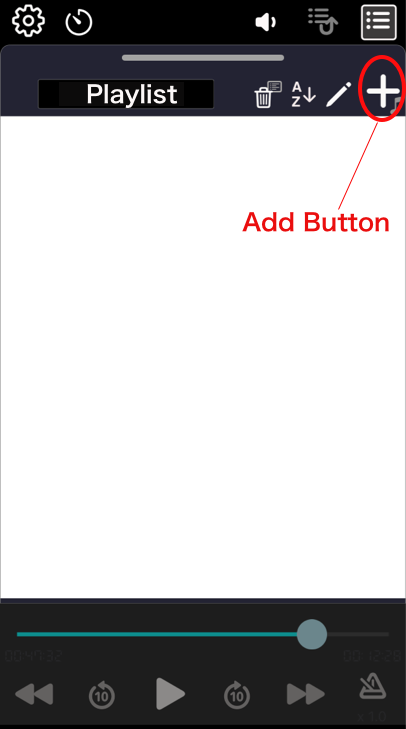
When you first start the app, an empty playlist will open.
First, use the “Add button” to add playback media to the playlist.
Add Playback Media
Add playback media (video or audio files) to the list.
Tap the “Add button” to display the following menu.
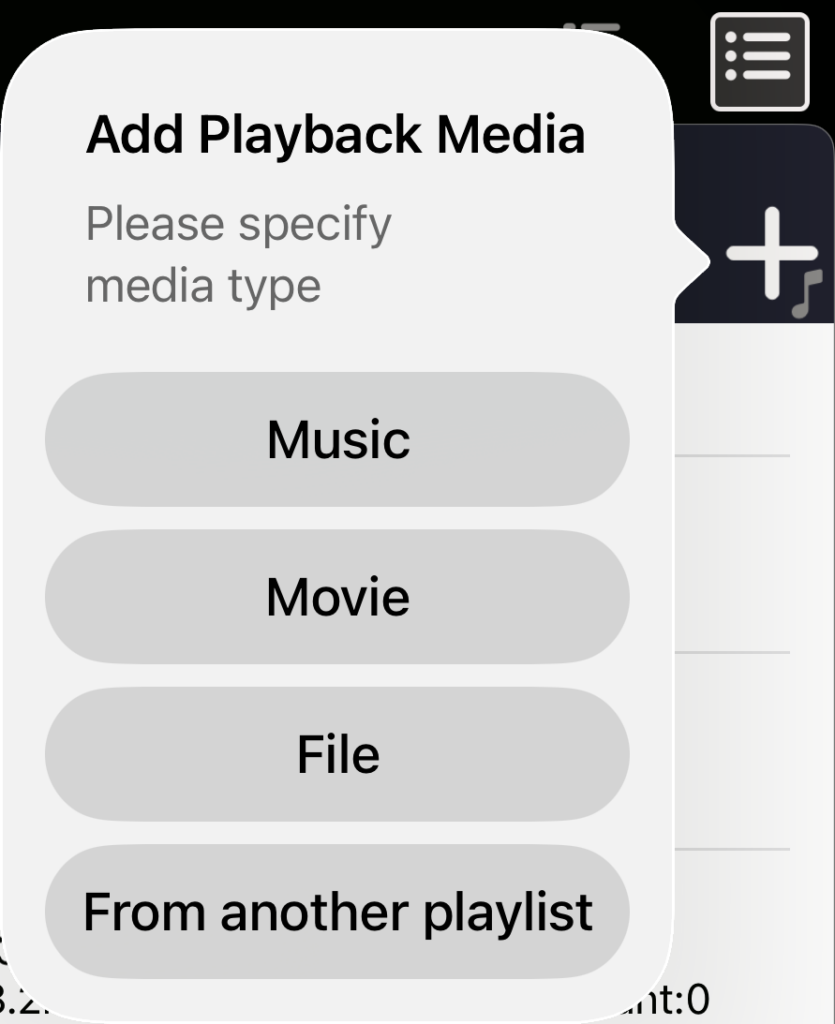
Music: You can add songs from your music library.
Protected music, such as Apple Music, cannot be added.
Videos: You can add video files stored in Photos.
File: You can add video or music files that can be handled by the Files app.
From another playlist: If you have multiple playlists, you can add media stored in other playlists to the current playlist.
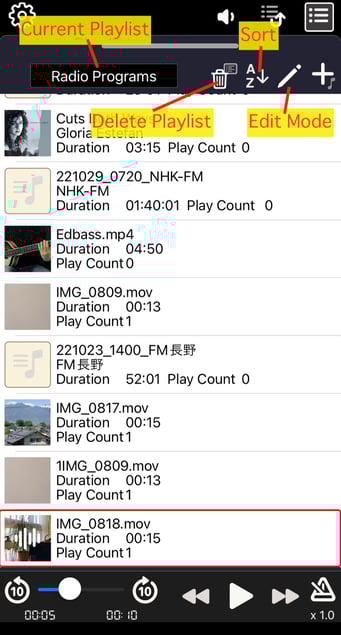
Once you add media to the playlist, it will look like this. You can also list video and music files in the same playlist.
Current Playlist / Switching Playlists / New Playlist
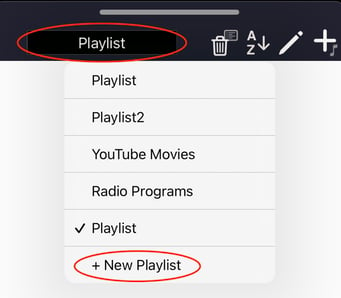
When you tap the current playlist, a pop-up will appear with all registered playlists.
- You can switch playlists by tapping other playlists.
- Tap “+ New Playlist” at the bottom of the list to create a new playlist.
Delete playlist
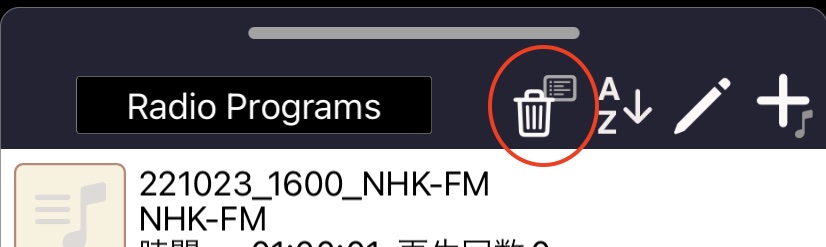
Tap to delete the current playlist.
Sort
You can rearrange the playing media in the current playlist.
Edit Mode
This button switches on and off edit mode.
The following edits are possible while in edit mode.
- Change the playlist name
- Delete media
- Manually rearrange media
Preview View
This view allows you to preview the video currently playing and displays detailed information about the music.
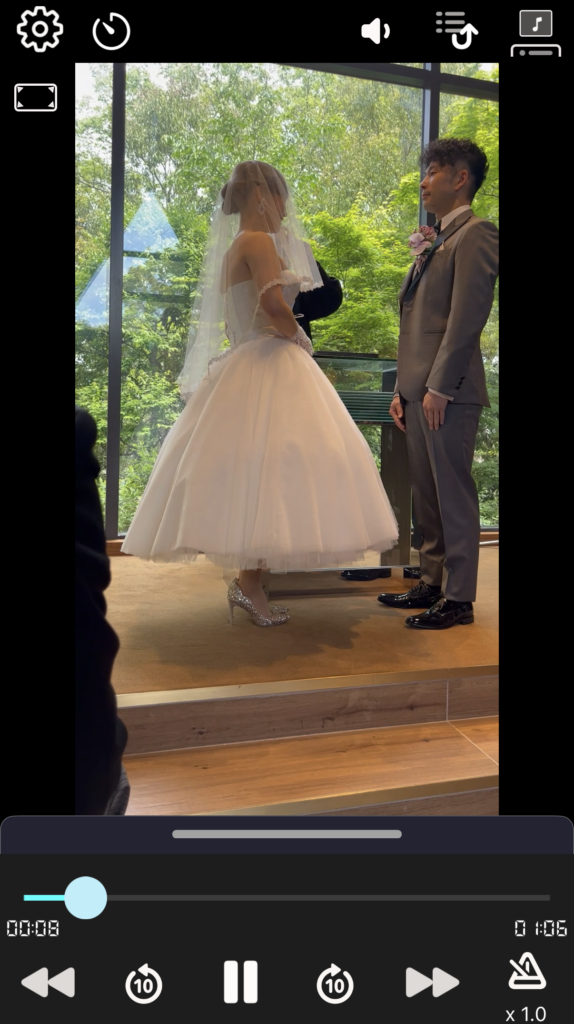
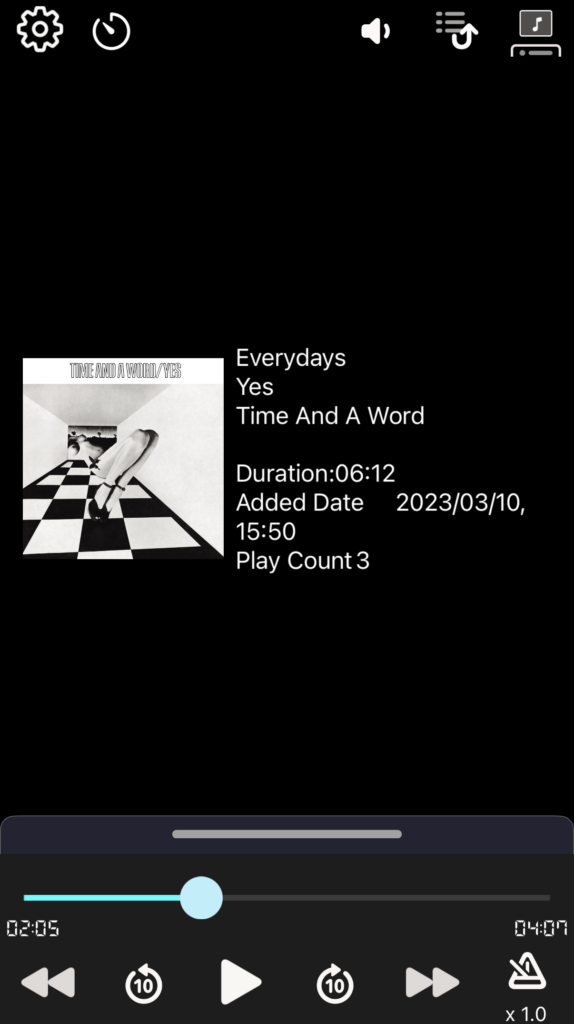
(Left) When playing video (Right) When playing music
Switching between playlists and previews
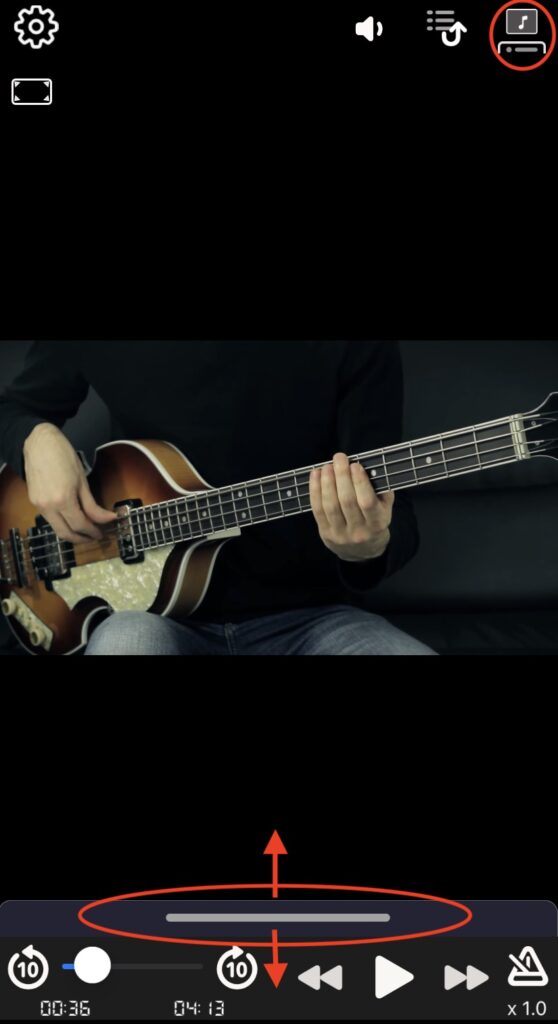
When you play a video, it will automatically enter preview mode.
How to manually switch modes: If you want to force switch modes, you can do so in one of two ways:
・Tap the list view button in the upper right corner of the app to switch between list view mode and preview mode.
・Tapping the top of the list view (the horizontal bar) will show or hide the list.
Play Off Timer
This function pauses playback after a certain amount of time has elapsed since playback began.
How to turn on the playoff timer
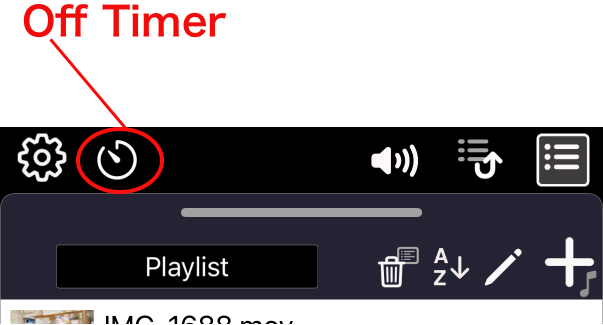
1) Tap the Off Timer button at the top of the screen.
2) The timer setting dialog will open.
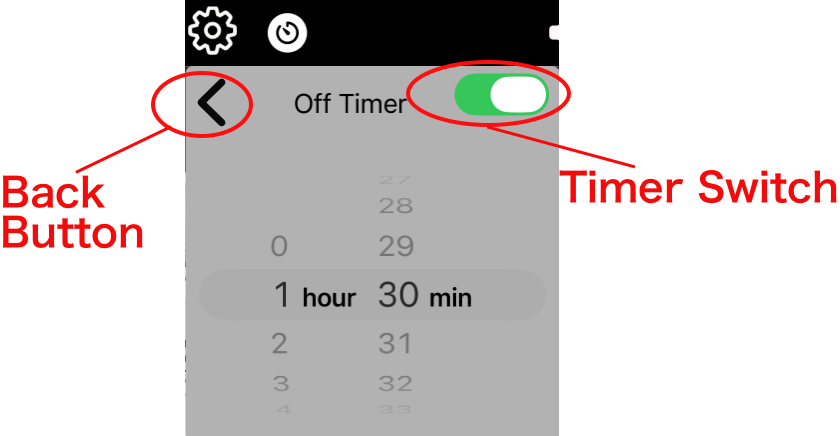
3) Set the timer time and turn the “Timer Switch” ON.
4) Press the back button to close the dialog.
5) Make sure the OFF Timer button is set to ON.
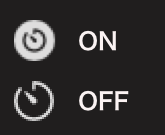
If playback is in progress, the timer will start from this point. If playback is paused, the timer will start from the next playback start.
・If playback is started again with the OFF Timer button still ON after playback has stopped due to the timer, playback will stop after a certain period of time.
How to turn off the playoff timer
Tapping the OFF Timer button will turn it OFF.
Version upgrade history
ver.1.2.0
- Supports more audio formats
- aiff, m4a, caf, aifc, amr, au, ac3, eac3
- Minor bug fixes
- Added a playoff timer feature
February 2026
ver.1.3.0
- Improved behavior when pressing the “Next Track” button.
- Previously, it always started from the beginning of the next song, but if the next song has resume information, you can now choose whether to start playback from the beginning or from the resume position. (This is the same process as when selecting a song from a list.)
- Improved playback speed function.
- Previously, playback speed settings were only stored for each song. Starting with this version, users can choose to store the speed for each song or for all songs.
- The selection is made from the “Settings” screen.
February 2026